
4.7 KiB
Migration
Key Pair
It is recommended to create a new ssh key pair for your gradido server. You can create it with this command:
ssh-keygen -t ed25519 -C "your_email@example.com"
Reason: We recommend ed25519 because it provides strong security with smaller key sizes, faster performance, and resistance to known attacks, making it more secure and efficient than traditional RSA keys.
Setup on Hetzner Cloud Server
Suggested OS: Debian 12
For Hetzner Cloud Server a cloud config can be attached, which will be run before first start https://community.hetzner.com/tutorials/basic-cloud-config/de https://cloudinit.readthedocs.io/en/latest/reference/examples.html You can use our cloudConfig.yaml but you must insert you own ssh public key, like this:
ssh_authorized_keys:
  - ssh-ed25519 AAAAC3NzaC1lZDI1NTE5AAAAIAkLGbzbG7KIGfkssKJBkc/0EVAzQ/8vjvVHzNdxhK8J yourname
I made a (german) video to show it to you (video is older, cloudConfig.yaml differ):
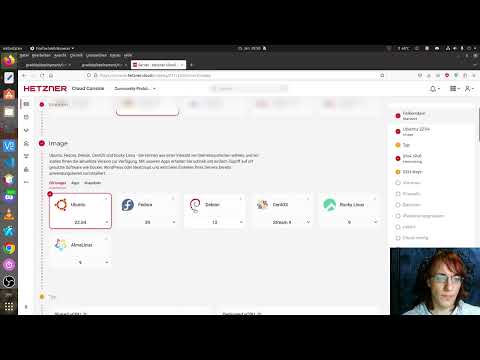
After Setup Cloud Server with cloudConfig.yaml
setup your domain pointing on server ip address
login to your new server as root
ssh -i ~/.ssh/id_ed25519 root@gddhost.tld
Set password for user gradido
$ passwd gradido
# enter new password twice
Switch to the new user
su gradido
Test authentication via SSH
If you logout from the server you can test authentication:
$ ssh -i ~/.ssh/id_ed25519 gradido@gddhost.tld
# This should log you in and allow you to use sudo commands, which will require the user's password
Disable password root login via ssh
sudo sed -i -e '/^\(#\|\)PermitRootLogin/s/^.*$/PermitRootLogin no/' /etc/ssh/sshd_config.d/ssh-hardening.conf
sudo sed -i '$a AllowUsers gradido' /etc/ssh/sshd_config.d/ssh-hardening.conf
sudo /etc/init.d/ssh restart
Test SSH Access only, no root ssh access
$ ssh gradido@gddhost.tld
# Will result in in either a passphrase request for your key or the message 'Permission denied (publickey)'
$ ssh -i ~/.ssh/id_ed25519 root@gddhost.tld
# Will result in 'Permission denied (publickey)'
$ ssh -i ~/.ssh/id_ed25519 gradido@gddhost.tld
# Will succeed after entering the correct keys passphrase (if any)
Install Gradido code
latest is a tag pointing on last stable release
cd ~
git clone https://github.com/gradido/gradido.git --branch latest --depth 1
Adjust the values in .env
!!! Attention !!!
Don't forget this step!
All your following installations in install.sh will fail!
Notes:
;cannot be part of any value!- The GitHub secret is created on GitHub in Settings -> Webhooks.
Create .env and set values
cd ~/gradido/deployment/bare_metal
cp .env.dist .env
nano .env
For a minimal setup you need at least to change this values:
COMMUNITY_NAME="Your community name"
COMMUNITY_DESCRIPTION="Short Description from your Community."
# your domain name, without protocol (without https:// or http:// )
# domain name should be configured in your dns records to point to this server
# hetzner_cloud/install.sh will be acquire a SSL-certificate via letsencrypt for this domain
COMMUNITY_HOST=gddhost.tld

# setup email account for sending gradido system messages to users
EMAIL_USERNAME=peter@lustig.de
EMAIL_SENDER=peter@lustig.de
EMAIL_PASSWORD=1234
EMAIL_SMTP_HOST=smtp.lustig.de
Run install.sh with branch or tag name
!!! Attention !!! Don't use this script if you have custom config in /etc/nginx/conf.d, because this script will remove it and ln ../bare_metal/nginx/conf.d
cd ~/gradido/deployment/hetzner_cloud
sudo ./install.sh latest
I made a (german) video to show it to you (video is older, output will differ):
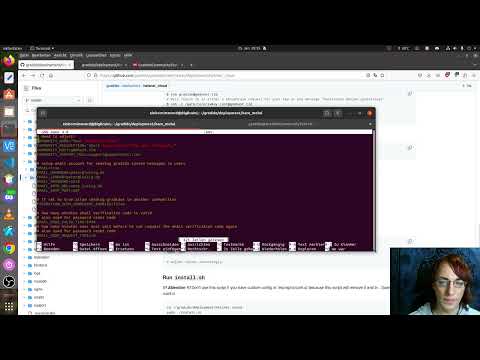
Make yourself admin
- Create an account on your new gradido instance
- Click the link in the activation email
- go back to your ssh session and copy this command
sudo mysql -D gradido_community -e "insert into user_roles(user_id, role) values((select id from users order by id desc limit 1), 'ADMIN');"
- it will make last registered user admin
- login with you newly created user
- if you has a link to
Admin Areait worked and you are admin
I made a (german) video to show it to you:
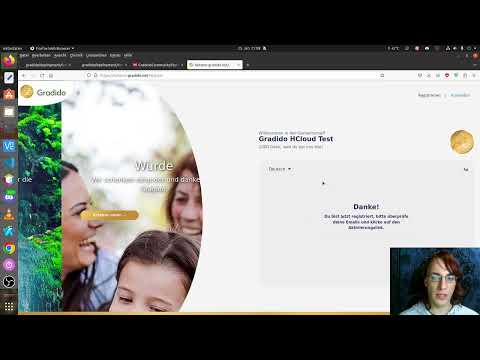
But it isn't working
If it isn't working you can write us: support@gradido.net