
3.5 KiB
Digital Ocean
As a start, read the introduction into kubernetes by the folks at Digital Ocean. The following section should enable you to deploy Human Connection to your kubernetes cluster.
Connect to your local cluster
- Create a cluster at Digital Ocean.
- Download the
***-kubeconfig.yamlfrom the Web UI. - Move the file to the default location where kubectl expects it to be:
mv ***-kubeconfig.yaml ~/.kube/config. Alternatively you can set the config on every command:--kubeconfig ***-kubeconfig.yaml - Now check if you can connect to the cluster and if its your newly created one by running:
kubectl get nodes
The output should look about like this:
$ kubectl get nodes
NAME                  STATUS   ROLES    AGE   VERSION
nifty-driscoll-uu1w   Ready    <none>   69d   v1.13.2
nifty-driscoll-uuiw   Ready    <none>   69d   v1.13.2
nifty-driscoll-uusn   Ready    <none>   69d   v1.13.2
If you got the steps right above and see your nodes you can continue.
Install kubernetes dashboard
The kubernetes dashboard is optional but very helpful for debugging. If you want to install it, you have to do so only once per cluster:
$ kubectl apply -f dashboard/
$ kubectl apply -f https://raw.githubusercontent.com/kubernetes/dashboard/master/aio/deploy/recommended/kubernetes-dashboard.yaml
Login to your dashboard
Proxy the remote kubernetes dashboard to localhost:
$ kubectl proxy
Visit:
http://localhost:8001/api/v1/namespaces/kube-system/services/https:kubernetes-dashboard:/proxy/
You should see a login screen.
To get your token for the dashboard you can run this command:
$ kubectl -n kube-system describe secret $(kubectl -n kube-system get secret | grep admin-user | awk '{print $1}')
It should print something like:
Name:         admin-user-token-6gl6l
Namespace:    kube-system
Labels:       <none>
Annotations:  kubernetes.io/service-account.name=admin-user
              kubernetes.io/service-account.uid=b16afba9-dfec-11e7-bbb9-901b0e532516

Type:  kubernetes.io/service-account-token

Data
====
ca.crt:     1025 bytes
namespace:  11 bytes
token:      eyJhbGciOiJSUzI1NiIsInR5cCI6IkpXVCJ9.eyJpc3MiOiJrdWJlcm5ldGVzL3NlcnZpY2VhY2NvdW50Iiwia3ViZXJuZXRlcy5pby9zZXJ2aWNlYWNjb3VudC9uYW1lc3BhY2UiOiJrdWJlLXN5c3RlbSIsImt1YmVybmV0ZXMuaW8vc2VydmljZWFjY291bnQvc2VjcmV0Lm5hbWUiOiJhZG1pbi11c2VyLXRva2VuLTZnbDZsIiwia3ViZXJuZXRlcy5pby9zZXJ2aWNlYWNjb3VudC9zZXJ2aWNlLWFjY291bnQubmFtZSI6ImFkbWluLXVzZXIiLCJrdWJlcm5ldGVzLmlvL3NlcnZpY2VhY2NvdW50L3NlcnZpY2UtYWNjb3VudC51aWQiOiJiMTZhZmJhOS1kZmVjLTExZTctYmJiOS05MDFiMGU1MzI1MTYiLCJzdWIiOiJzeXN0ZW06c2VydmljZWFjY291bnQ6a3ViZS1zeXN0ZW06YWRtaW4tdXNlciJ9.M70CU3lbu3PP4OjhFms8PVL5pQKj-jj4RNSLA4YmQfTXpPUuxqXjiTf094_Rzr0fgN_IVX6gC4fiNUL5ynx9KU-lkPfk0HnX8scxfJNzypL039mpGt0bbe1IXKSIRaq_9VW59Xz-yBUhycYcKPO9RM2Qa1Ax29nqNVko4vLn1_1wPqJ6XSq3GYI8anTzV8Fku4jasUwjrws6Cn6_sPEGmL54sq5R4Z5afUtv-mItTmqZZdxnkRqcJLlg2Y8WbCPogErbsaCDJoABQ7ppaqHetwfM_0yMun6ABOQbIwwl8pspJhpplKwyo700OSpvTT9zlBsu-b35lzXGBRHzv5g_RA
Grab the token from above and paste it into the login screen
When you are logged in, you should see sth. like:
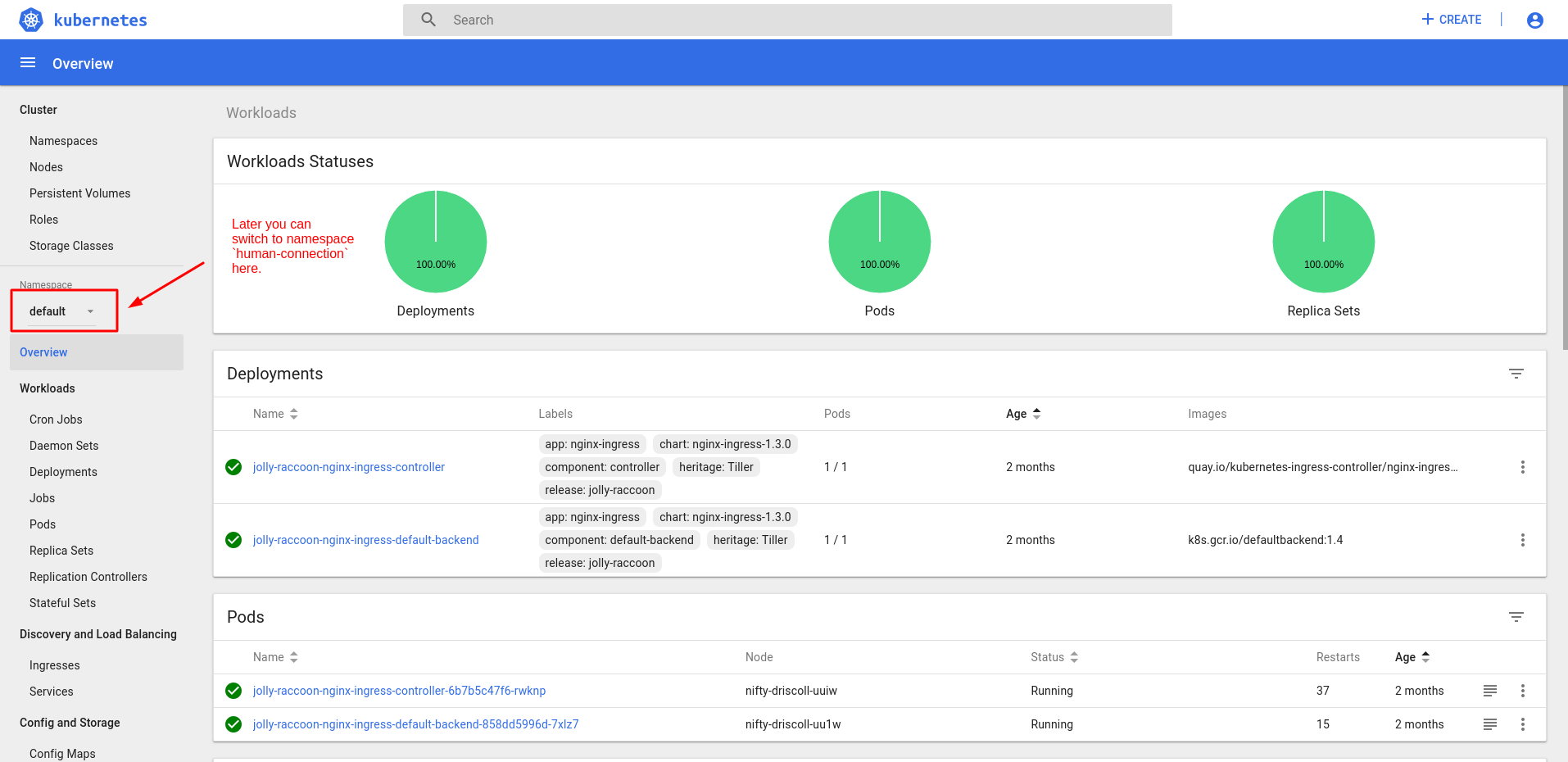
Feel free to save the login token from above in your password manager. Unlike the kubeconfig file, this token does not expire.